
Inhaltsangabe
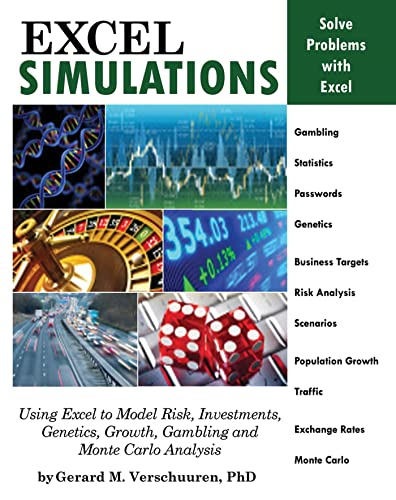
Covering a variety of Excel simulations, from gambling to genetics, this introduction is for people interested in modeling future events, without the cost of an expensive textbook. The simulations covered offer a fun alternative to the usual Excel topics and include situations such as roulette, password cracking, sex determination, population growth, and traffic patterns, among many others.
Die Inhaltsangabe kann sich auf eine andere Ausgabe dieses Titels beziehen.
Über die Autorin bzw. den Autor
Gerard M. Verschuuren, PhD, is a Microsoft Certified Professional specializing in C#.NET, VB, VBA, and VB.NET. He is the principal of Genesis PC, where he teaches and advises on the use of curve-fitting software such as Excel and XLfit in data, regression, and statistical analyses. His clients include Abbott, Bose, IBM, Liberty Mutual, Massachusetts General Hospital, and Harvard University. He is the author of numerous computer programming books, including Excel 2007 VBA, From VBA to VSTO, Master the Web, and Slide Your Way Through Excel VBA. He lives in Atkinson, New Hampshire.
Auszug. © Genehmigter Nachdruck. Alle Rechte vorbehalten.
Excel Simulations
By Gerard M. VerschuurenHoly Macro! Books
Copyright © 2014 Gerard M. Verschuuren
All rights reserved.
ISBN: 978-1-61547-022-8All rights reserved.
CHAPTER 1
Gambling
1. The Die Is Cast
What the simulation does
We start with a very simple case of simulation — casting a die (on sheet "Dice" in 1-Gambling.xlsx). In cell A1 is a formula that generates a random number between 1 and 6. According to that outcome, the colored die shows the appropriate number of eyes at their proper locations. Each time the random number changes, the die adjusts accordingly.
What you need to know
Cell A1 has a formula that uses a volatile function called RAND. On each recalculation, this function generates a new random number between 0 and 1. Because we want numbers between 1 and 6, we need to multiply by 6, round the number down by using the INT function, and then add 1 to the end result. More in general: =INT((high-low+1)*RAND()+low).
Users of Excel 2007 and later can also use the "easier" function RANDBETWEEN which has two arguments for the lower limit (in this case 1) and the upper limit (in this case 6). I decided not to use that function, because in pre-2007 Excel versions this function was only available through the Analysis Toolpak.
To generate a new random number, you either hit the key F9 or the combination of the Shift key and the F9 key. In this file, I would recommend the latter option (Shift F9), since that would only recalculate the current sheet — otherwise you would recalculate all sheets in this file, which may take lots of calculating time.
Finally, we need to regulate which eyes should pop up for each new random number. This is done inside some of the die cells by using the IF function. This function is a "decision maker," which determines whether a specific eye should be on or off.
What you need to do
1. Type in cell A1: =INT(RAND()*6) + 1. In this case, the function RAND is "nested" inside the function INT (INT eliminates decimals). Nested functions are very common in Excel; for more information, see Appendix 2.
2. Type in B3: =IF(A1>1,0,""). The two double quotes in the last argument return an empty string, showing up as nothing.
3. Type in D3: =IF(A1>3,0,"").
4. Type in B5: =IF(A1=6,0,"").
5. Type in D5: =IF(A1=6,0,"").
6. Type in B7: =IF(A1>3,0,"").
7. Type in D7: =IF(A1>1,0,"").
8. Type in C5: =IF(OR(A1=1,A1=3,A1=5),0,""). In this case, the function OR is nested inside IF. The function OR returns "true" if any of the enclosed arguments is "true."
9. If you want to see all formulas at once, hit Ctr ~ (the tilde can be found below the Esc key). This shortcut toggles the sheet, back and forth, between value-view and formula-view.
2. Casting Six Dice
What the simulation does
Open file 1-Gambling.xlsx on sheet "6-Dices." This time we have six different dice. Each die "listens" to a random number above it, to its left.
The settings for each die are similar to what we did in Simulation 1. The number of eyes for each die is plotted in a column chart below the dice.
A die that shows six eyes gets marked with a color. When there are at least 2 dice in a row with six eyes, all dice get marked at the same time.
What you need to know
There is not much new on this sheet. The main difference is that we need 6 different cells with a RAND function in order to control the six die displays. Each die has the same structure as the one used in Simulation 1.
In addition, we use conditional formatting to change colors of the dice when they show six eyes, or contain at least two dice with six eyes.
What you need to do
1. Make sure all six dice are set up as was done in Simulation 1, but each die is connected to the random cell just above it.
2. Select range A1:C7 first, then Home | Conditional Format | Formula: =$A$1=6.
3. Do something similar for the other five dice.
4. Finally select A3:W7 (that is all six dice) and format them conditionally: =COUNTIF($A$1:$U$1,6)>=2.
5. By using (Sh)F9, you may hit a situation like below where at least two dice have six eyes (F9 recalculates all the sheets of the entire file, whereas Sh F9 only does so for the current sheet and may take less time).
3. Frequencies
What the simulation does
Open file 1-Gambling.xlsx on sheet "Frequencies." This time we cast two dice at once and sum the number of eyes in column C; we repeat this process 9 more times. In column F, we calculate how often we had a hit of 2 eyes in total, 3 eyes, and so on, up to 12 eyes.
The frequencies are plotted in a graph. Cell F14 calculates the average of column C. It turns color for extreme values. The average is also plotted in the graph as a vertical line — based on the two sets of coordinates shown in E16:F17.
The curve keeps changing each time we hit Shift F9. Very rarely does it come close to a normal distribution with a mean somewhere in the center. The chance for this to happen would increase if we would have used more dice and more repeats.
What you need to know
On order to calculate frequencies, we need the function FREQUENCY. This is a so-called array function (more on this in Simulations 62 and 63). Such functions return an array or require an array for intermediate calculations. All array functions have to be implemented with three keys at the same time: Ctr Sh Enter.
The function FREQUENCY returns an array of multiple answers based on a set of "bins." In this case, the bins are in column E. The function "reads" the bins as follows: 2 covers all cases up to and including 2, 3 covers all cases >2 and <=3, etc. To make this function work, you need to select all the cells that are going to hold the frequency values all at once, before you use the array function. Once the array function has been implemented with Ctr Sh Enter, you will see the formula in the formula bar surrounded by braces — like this: {=FREQUENCY(..., ...)}. Do not type the braces; they come automatically with Ctr Sh Enter.
Changing colors of cells under certain conditions is done with so-called conditional formatting (located under the Home tab). When the specified conditions kick in, the cell will be formatted according to certain settings. In our case, we want to flag averages under 5.5 and over 8.5, which requires an OR function.
What you need to do
1. Column C sums the eyes of both dice.
2. Select the entire range F2:F12 first, before you implement =FREQUENCY(C2:C11,E2:E12), and then hit Ctr Sh Enter. Notice the braces in the formula bar.
3. Type in cell F14: =AVERAGE(C2:C11).
4. Select cell F14, Home | Conditional Formatting | New Rule | Use a Formula | =OR($F$14<5.5,$F$14>8.5) | Format color.
5. The average line in the graph is based on a new series of values with two sets of coordinates: E16:E17 for the X-values, and F16:F17 for the Y-values.
6. Hit Sh F9 for new simulations. As they say, "Results may vary" (see below).
4. Roulette Machine
What the simulation does
Open file 1-Gambling.xlsx on sheet "Roulette." Column A simulates a roulette with 1,000 random numbers between 1 and 36. In column B, you type 1 if you expect the next number to be odd — otherwise 2 for even.
Column E keeps the score: it adds 1, when your prediction was correct — otherwise it subtracts 1. Once you are finished, you...
„Über diesen Titel“ kann sich auf eine andere Ausgabe dieses Titels beziehen.
Weitere beliebte Ausgaben desselben Titels

Suchergebnisse für Excel Simulations

Beispielbild für diese ISBN
Excel Simulations
Anbieter: ThriftBooks-Dallas, Dallas, TX, USA
Verkäuferbewertung 5 von 5 Sternen

Paperback. Zustand: Very Good. No Jacket. May have limited writing in cover pages. Pages are unmarked. ~ ThriftBooks: Read More, Spend Less. Artikel-Nr. G1615470220I4N00
Gebraucht kaufen
EUR 6,59
Versand gratis
Versand innerhalb von USA
Versand innerhalb von USA
Anzahl: 1 verfügbar
Beispielbild für diese ISBN
Excel Simulations
Anbieter: ThriftBooks-Dallas, Dallas, TX, USA
Verkäuferbewertung 5 von 5 Sternen
Paperback. Zustand: Good. No Jacket. Pages can have notes/highlighting. Spine may show signs of wear. ~ ThriftBooks: Read More, Spend Less. Artikel-Nr. G1615470220I3N00
Gebraucht kaufen
EUR 6,59
Versand gratis
Versand innerhalb von USA
Versand innerhalb von USA
Anzahl: 1 verfügbar
Beispielbild für diese ISBN
Excel Simulations
Anbieter: ThriftBooks-Phoenix, Phoenix, AZ, USA
Verkäuferbewertung 5 von 5 Sternen
Paperback. Zustand: Very Good. No Jacket. May have limited writing in cover pages. Pages are unmarked. ~ ThriftBooks: Read More, Spend Less. Artikel-Nr. G1615470220I4N00
Gebraucht kaufen
EUR 6,59
Versand gratis
Versand innerhalb von USA
Versand innerhalb von USA
Anzahl: 1 verfügbar
Beispielbild für diese ISBN
Excel Simulations
Anbieter: ThriftBooks-Atlanta, AUSTELL, GA, USA
Verkäuferbewertung 5 von 5 Sternen
Paperback. Zustand: Very Good. No Jacket. May have limited writing in cover pages. Pages are unmarked. ~ ThriftBooks: Read More, Spend Less. Artikel-Nr. G1615470220I4N00
Gebraucht kaufen
EUR 6,59
Versand gratis
Versand innerhalb von USA
Versand innerhalb von USA
Anzahl: 1 verfügbar
Beispielbild für diese ISBN
Excel Simulations
Verlag:
Tickling Keys, Incorporated, 2013
ISBN 10: 1615470220
ISBN 13: 9781615470228
Gebraucht
Softcover
Anbieter: Better World Books: West, Reno, NV, USA
Verkäuferbewertung 5 von 5 Sternen
Zustand: Good. Former library copy. Pages intact with minimal writing/highlighting. The binding may be loose and creased. Dust jackets/supplements are not included. Includes library markings. Stock photo provided. Product includes identifying sticker. Better World Books: Buy Books. Do Good. Artikel-Nr. 47944667-75
Gebraucht kaufen
EUR 6,64
Versand gratis
Versand innerhalb von USA
Versand innerhalb von USA
Anzahl: 1 verfügbar
Beispielbild für diese ISBN
EXCEL SIMULATIONS
Anbieter: AwesomeBooks, Wallingford, Vereinigtes Königreich
Verkäuferbewertung 5 von 5 Sternen
Paperback. Zustand: Very Good. EXCEL SIMULATIONS This book is in very good condition and will be shipped within 24 hours of ordering. The cover may have some limited signs of wear but the pages are clean, intact and the spine remains undamaged. This book has clearly been well maintained and looked after thus far. Money back guarantee if you are not satisfied. See all our books here, order more than 1 book and get discounted shipping. Artikel-Nr. 7719-9781615470228
Gebraucht kaufen
EUR 7,44
EUR 4,75 Versand
Versand von Vereinigtes Königreich nach USA
Versand von Vereinigtes Königreich nach USA
Anzahl: 2 verfügbar
Beispielbild für diese ISBN
EXCEL SIMULATIONS
Anbieter: Bahamut Media, Reading, Vereinigtes Königreich
Verkäuferbewertung 5 von 5 Sternen
Paperback. Zustand: Very Good. This book is in very good condition and will be shipped within 24 hours of ordering. The cover may have some limited signs of wear but the pages are clean, intact and the spine remains undamaged. This book has clearly been well maintained and looked after thus far. Money back guarantee if you are not satisfied. See all our books here, order more than 1 book and get discounted shipping. Artikel-Nr. 6545-9781615470228
Gebraucht kaufen
EUR 7,39
EUR 8,05 Versand
Versand von Vereinigtes Königreich nach USA
Versand von Vereinigtes Königreich nach USA
Anzahl: 2 verfügbar