
Verwandte Artikel zu PowerPivot Alchemy: Patterns and Techniques for Excel
Inhaltsangabe
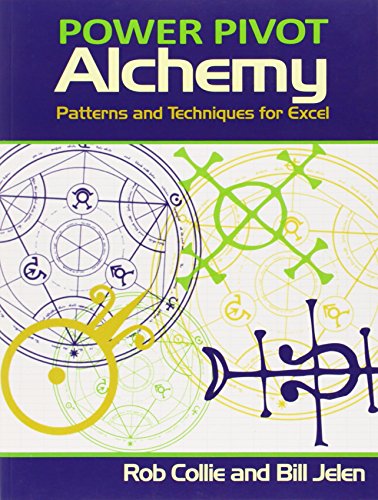
Rob Collie (PowerPivotPro) and Bill Jelen (MrExcel) join forces in this combined sequel to their best-selling Power Pivot books.Alchemy sets aside the fundamentals of past books and provides a series of practical, easy-to-follow “patterns” for dozens of common analysis, reporting, and dashboarding needs. Three “bonus” chapters introduce you to the newer members of the “Power BI” family – Power Query, Power View, and Power Map. Whether you are starting your transformation from “old school” Excel User to Modern Data Professional or a veteran of the Power BI arts, this book will dramatically expand your data superpowers.
Die Inhaltsangabe kann sich auf eine andere Ausgabe dieses Titels beziehen.
Über die Autorin bzw. den Autor
A former Microsoft engineering leader, Rob Collie is an entrepreneur, author, and consultant who believes Excel is enjoying a renaissance in power and importance - a trend that provides massive opportunities for the millions of Excel practitioners worldwide. His passion is empowering and the Excel Professional to seize those opportunities. When he's not training, consulting, or writing, Rob can be found in his laboratory, devising new tools and techniques for the Excel community. He also operates the world's leading PowerPivot website (PowerPivotPro.com) and occasionally sleeps.
Bill Jelen is the host of MrExcel.com and the author of 43 books about Microsoft Excel. He is a Microsoft MVP in Excel and a contributor toStrategic Finance Magazine.
Auszug. © Genehmigter Nachdruck. Alle Rechte vorbehalten.
PowerPivot Alchemy
By Rob Collie, Bill JelenHoly Macro! Books
Copyright © 2014 Robert Collie and Tickling Keys, Inc.
All rights reserved.
ISBN: 978-1-61547-021-1All rights reserved.
Contents
Dedications, v,
Acknowledgements, vii,
Foreword, ix,
Introduction, xi,
Chapter 1: Dashboard Tricks and Visualization Techniques, 1,
Chapter 2: Slicers: The Gateway to Interactivity, 23,
Chapter 3: Conquering Common Calculated Column Conundrums, 75,
Chapter 4: Modeling and Portable Formulas, 103,
Chapter 5: Power Query, 171,
Chapter 6: Power View, 199,
Chapter 7: Power Map, 221,
CHAPTER 1
Dashboard Tricks and Visualization Techniques
Broadly speaking, Power Pivot is a numbers-producing machine: Raw data goes in, your formulas and relationships digest it, and magically useful numbers come out. Those numbers are often metrics on a business, and that's a beautiful thing; very often, those metrics are being "seen" for the first time in the history of the business. Quite often, before a business adopts Power Pivot, it is forced to operate without metrics that are, in hindsight, quite clearly critical. This is a lot like a doctor suddenly having access to patient information such as temperature, pulse rate, and blood pressure — after lacking that information for most of a career. Such a shift is transformational. So, Power Pivot produces numbers — incredibly important numbers that quite often have never before existed. It's empowering stuff for sure.
There is a natural tendency among "numbers" people to view the freshly pressed numbers as the final destination. Resist that temptation! In order for numbers to have an impact, they need to be communicated to other people who may not be fascinated with these magical digits. Furthermore, those people then need to translate them into action. So the way you present numbers is often every bit as critical as the numbers themselves.
This chapter provides a collection of tricks in that vein. We have intentionally selected techniques ranging from "bread and butter" (that you might use in nearly every report/dashboard) to "envelope pushing" (that you might not apply in precisely the manner presented but that might inspire related approaches). We start with one of the former.
Adding a "Last Refreshed Date" Readout
You've built some killer models and reports. You've published them to SharePoint. You've scheduled automatic refresh to run, say, once per week. You have this Power Pivot thing All. Dialed. In. But are the report consumers satisfied? Nope, they aren't satisfied!
You can be certain that your report consumers will never be satisfied. And, hey, that's kinda cool. It's a good thing. You weren't given all this new power just so you could sit on your laurels, were you? Nope. True Power Pivot pros aren't even sure they can find their laurels, much less sit on them. You will always be improving — both your skill set and the reports you produce.
One improvement you can make is to automatically inform report consumers of how "fresh" the data is so they don't have to deal with stale reports. Adding such a readout is actually pretty simple: It requires just two steps.
Step 1: Adding a Last Refreshed Measure
Somewhere in the Power Pivot window, you probably have a column whose most recent date is always the date on which the data was last refreshed. For instance, in a retail system, you might be able to use your Sales table for this, as long as you always have at least one transaction per day. Or perhaps the Calendar table you pull from the database is always current (and does not contain future dates). Or perhaps you can get your DB admin to add a single-cell table just for this purpose.
This example uses the TransactionDate column from a Sales table:
[ILLUSTRATION OMITTED]
Did you know that measures can return dates? They sure can, and it's killer useful. Here's how you create a measure that does this:
[LastRefreshed] = LASTDATE(Sales[TransactionDate])
LASTDATE() is kinda like MAX() but for dates. It always returns the most recent transaction date:
[ILLUSTRATION OMITTED]
Neat, huh? It's a date returned as a measure, in a Pivot.
Step 2: Using the Measure in a Cube Formula
The most flexible, least intrusive way to display the LastRefreshed measure in a report is to create a single cube formula for it and then stuff that formula into a single cell. That way, you have complete control over its appearance.
Two things to note here:
• Given that your reports will often have columns that are oddly sized, to make everything look good, it's much better to use a single-cell formula that includes the label than to split it across two cells.
• A cube formula, when it returns a date measure, formats it as an integer rather than as a date. So you need to reformat it as a date in the formula. (You could just use Format Cells, but when you put the label and the date in a single cell, you can't just format the cell as a date.)
To make a long story short, here is the cube formula to use in this case:
="Last Refreshed:" & TEXT(CUBEVALUE("PowerPivotData", "[Measures].[LastRefreshed]"),"mm/dd/yyyy")
You can leave the result as a date serial number and then put the label in the custom format. Use =CUBEVALUE() to return the date serial number. Select the cell, press Ctrl+1, choose Number, Custom. In the Type box, enter "Last Refreshed "m/d/yyyy:
[ILLUSTRATION OMITTED]
Plop this in the desired cell, and you're all set:
[ILLUSTRATION OMITTED]
Pretty slick. The cell will refresh every time the workbook is refreshed. But it will not be reevaluated during an update, as happens with a slicer.
Note
For more on refreshing versus updating and the huge difference in performance between the two, see http://ppvt.pro/REFRESHUPDATE.
Normalizing Your Measures to First/Average/Max Values for Charts
In this chart, the line for Total Sales is quite visible, whereas the other two lines are squashed at the bottom. Even when this chart is in color, you can't tell that the line for Transaction Size is 50 times higher than the line for Active Customers.
The three lines plotted on this chart are "sourced" from the following numbers:
[ILLUSTRATION OMITTED]
These three measures are very different in their relative sizes, varying from two digits to six digits. Data like this results in crappy charts. But with a little formula magic, you can fix the chart above so it looks like this:
[ILLUSTRATION OMITTED]
Ah, formulas make everything better. Yep, this chart uses the same data as the earlier chart, just "normalized."
A Word from the Charting Pit of Derision
Yeah, I (Rob) hear that chittering out there ... the mandibles of the demonspawn chart fiends are clacking out a sound that resembles "Secondary Axis!"
Well, I need three axes this time. Is there a Tertiary Axis feature? I seriously don't even know. There are only two sides to the chart, so it would make sense, I guess, to not offer a tertiary axis. You'd have to start "stacking" scales side by side, and that would probably make Tufte cry.
But I'm intentionally not checking whether there is such a feature. Because honestly I don't even like the Secondary Axis feature that much.
If you are absolutely sure that none of your numbers will ever be 0 or negative, you...
„Über diesen Titel“ kann sich auf eine andere Ausgabe dieses Titels beziehen.
Suchergebnisse für PowerPivot Alchemy: Patterns and Techniques for Excel

Beispielbild für diese ISBN
PowerPivot Alchemy : Patterns and Techniques for Excel
Anbieter: Better World Books, Mishawaka, IN, USA
Verkäuferbewertung 5 von 5 Sternen

Zustand: Good. Pages intact with minimal writing/highlighting. The binding may be loose and creased. Dust jackets/supplements are not included. Stock photo provided. Product includes identifying sticker. Better World Books: Buy Books. Do Good. Artikel-Nr. 17906058-6
Gebraucht kaufen
EUR 6,55
Versand gratis
Versand innerhalb von USA
Versand innerhalb von USA
Anzahl: 1 verfügbar
Beispielbild für diese ISBN
PowerPivot Alchemy: Patterns and Techniques for Excel
Anbieter: ThriftBooks-Reno, Reno, NV, USA
Verkäuferbewertung 5 von 5 Sternen
Paperback. Zustand: Good. No Jacket. Pages can have notes/highlighting. Spine may show signs of wear. ~ ThriftBooks: Read More, Spend Less. Artikel-Nr. G1615470212I3N00
Gebraucht kaufen
EUR 7,92
Versand gratis
Versand innerhalb von USA
Versand innerhalb von USA
Anzahl: 1 verfügbar
Beispielbild für diese ISBN
PowerPivot Alchemy: Patterns and Techniques for Excel
Anbieter: ThriftBooks-Atlanta, AUSTELL, GA, USA
Verkäuferbewertung 5 von 5 Sternen
Paperback. Zustand: Very Good. No Jacket. Former library book; May have limited writing in cover pages. Pages are unmarked. ~ ThriftBooks: Read More, Spend Less. Artikel-Nr. G1615470212I4N10
Gebraucht kaufen
EUR 7,92
Versand gratis
Versand innerhalb von USA
Versand innerhalb von USA
Anzahl: 1 verfügbar
Beispielbild für diese ISBN
PowerPivot Alchemy: Patterns and Techniques for Excel
Anbieter: ThriftBooks-Atlanta, AUSTELL, GA, USA
Verkäuferbewertung 5 von 5 Sternen
Paperback. Zustand: Good. No Jacket. Pages can have notes/highlighting. Spine may show signs of wear. ~ ThriftBooks: Read More, Spend Less. Artikel-Nr. G1615470212I3N00
Gebraucht kaufen
EUR 7,92
Versand gratis
Versand innerhalb von USA
Versand innerhalb von USA
Anzahl: 1 verfügbar
Beispielbild für diese ISBN
PowerPivot Alchemy: Patterns and Techniques for Excel
Anbieter: ThriftBooks-Dallas, Dallas, TX, USA
Verkäuferbewertung 5 von 5 Sternen
Paperback. Zustand: Good. No Jacket. Pages can have notes/highlighting. Spine may show signs of wear. ~ ThriftBooks: Read More, Spend Less. Artikel-Nr. G1615470212I3N00
Gebraucht kaufen
EUR 7,92
Versand gratis
Versand innerhalb von USA
Versand innerhalb von USA
Anzahl: 1 verfügbar