
Verwandte Artikel zu Office 2010 All-in-One For Dummies (For Dummies Series)
Inhaltsangabe
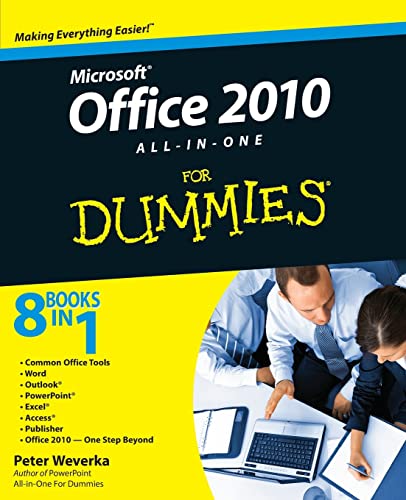
The leading book on Microsoft Office, now fully updated for Office 2010
Microsoft Office, the world's leading productivity suite, has been updated with new tools. Veteran Office users as well as newcomers will need the comprehensive information in this bestselling All-in-One guide.
With a self-contained minibook devoted to each Office application plus minibooks on how Office works together and how you can expand its usefulness, Office 2010 All-in-One For Dummies gets you up to speed and answers the questions you'll have down the road.
- Microsoft Office is the office productivity suite used around the globe; nearly every business worker encounters it daily
- The 2010 revision will affect all applications in the suite
- Eight minibooks cover Word, Excel, PowerPoint, Outlook, Access, Publisher, common Office tools, and ways to expand Office productivity
- Also covers the new online versions of Word, Excel, and PowerPoint as well as changes to the interface and new tools and techniques
Office 2010 All-in-One For Dummies makes it easy to learn to use Office and gets you up and running on all the changes and enhancements in Office 2010.
Die Inhaltsangabe kann sich auf eine andere Ausgabe dieses Titels beziehen.
Über die Autorin bzw. den Autor
Peter Weverka is a veteran For Dummies author who has covered a wide variety of Microsoft applications. In addition to PowerPoint 2007 All-in-One For Dummies and two previous editions of Office All-in-One For Dummies, he is the author of several editions of Microsoft Money For Dummies.
Von der hinteren Coverseite
- Common Office Tools
- Word
- Outlook®
- PowerPoint®
- Excel®
- Access®
- Publisher
- Office 2010 One Step Beyond
8 BOOKS IN 1
Welcome to Office 2010! Here's where you get up to speed on all the applications right now!
If you want to get your work done better and faster with Office 2010, this book is for you. Whether you're new to Office or need help navigating Office 2010's interface and new features, you'll find the answers, how-to information, advice, shortcuts, and tips right here. And you'll learn how the tools work together to make you more productive!
- They're a team explore commands and features common to all the Office programs plus techniques to boost your productivity
- Working with Word create letters, reports, newsletters, mass mailings, and more
- Improve your Outlook manage your e-mail, track tasks, keep an address book and calendar, and organize your life
- Get your Point across build livelier, more original PowerPoint presentations and even improve your delivery
- Excel at number crunching design spreadsheets that are easy to understand, use data-validation rules, and analyze data
- Access your information discover all the ways you can build and use an Access database
- Your own Publisher turn out great brochures, pamphlets, and other publications
- A step beyond check out the extra programs and customize your Office
Open the book and find:
- The common tools you'll find in all Office applications
- Clear instructions for revising and collaborating on documents
- Tips on building tables, charts, and diagrams in Excel, Word, and PowerPoint
- Word's tools for creating scholarly reports and white papers
- Advice on scheduling events with Outlook
- Secrets of memorable PowerPoint presentations
- How to build an Access database from scratch
- Hints for creating newsletters in Publisher
Aus dem Klappentext
- Common Office Tools
- Word
- Outlook®
- PowerPoint®
- Excel®
- Access®
- Publisher
- Office 2010 — One Step Beyond
8 BOOKS IN 1
Welcome to Office 2010! Here's where you get up to speed on all the applications — right now!
If you want to get your work done better and faster with Office 2010, this book is for you. Whether you're new to Office or need help navigating Office 2010's interface and new features, you'll find the answers, how-to information, advice, shortcuts, and tips right here. And you'll learn how the tools work together to make you more productive!
- They're a team — explore commands and features common to all the Office programs plus techniques to boost your productivity
- Working with Word — create letters, reports, newsletters, mass mailings, and more
- Improve your Outlook — manage your e-mail, track tasks, keep an address book and calendar, and organize your life
- Get your Point across — build livelier, more original PowerPoint presentations and even improve your delivery
- Excel at number crunching — design spreadsheets that are easy to understand, use data-validation rules, and analyze data
- Access your information — discover all the ways you can build and use an Access database
- Your own Publisher — turn out great brochures, pamphlets, and other publications
- A step beyond — check out the extra programs and customize your Office
Open the book and find:
- The common tools you'll find in all Office applications
- Clear instructions for revising and collaborating on documents
- Tips on building tables, charts, and diagrams in Excel, Word, and PowerPoint
- Word's tools for creating scholarly reports and white papers
- Advice on scheduling events with Outlook
- Secrets of memorable PowerPoint presentations
- How to build an Access database from scratch
- Hints for creating newsletters in Publisher
Auszug. © Genehmigter Nachdruck. Alle Rechte vorbehalten.
Office 2010 All-in-One For Dummies
By Peter WeverkaJohn Wiley & Sons
Copyright © 2010 John Wiley & Sons, LtdAll right reserved.
ISBN: 978-0-470-49748-7
Chapter One
Customizing an Office ProgramIn This Chapter
This chapter describes a handful of things you can do to customize Office 2010 programs. Don't be afraid to make like a software developer and change a program to your liking. Many people are wary of retooling Office programs, but you can always reverse the changes you make if you don't like them, as I explain throughout this chapter.
This chapter shows how to put your favorite button commands on the Ribbon and Quick Access toolbar. Instead of fishing around for your favorite commands, you can assemble them on the Ribbon or Quick Access toolbar and locate them right away. You also discover how to change around the status bar, dress up an Office program in a new set of clothes, and designate your own keyboard shortcuts in Word.
Customizing the Ribbon
As you surely know by now, the Ribbon is the stretch of ground across the top of all Office programs. The Ribbon is composed of tabs. On each tab, commands are arranged by group. To undertake a task, you visit a tab on the Ribbon, find the group with the command you want, and choose the command. If you are so inclined, you can customize the Ribbon. You can place the tabs and commands you know and love where you want to find them on the Ribbon. And you can remove tabs and commands that aren't useful to you.
To customize the Ribbon, open the Customize Ribbon tab of the Options dialog box with one of these techniques:
File
* On the File tab, choose Options, and select the Customize Ribbon category in the Options dialog box.
* Right-click a tab or button and choose Customize the Ribbon.
You see commands for customizing the Ribbon, as shown in Figure 1-1. The right side of the dialog box ("Customize the Ribbon") lists the names of tabs, groups within tabs, and commands within groups that are currently on the Ribbon. To customize the Ribbon, you arrange the right side of the dialog box to your liking. You list the tabs, groups, and commands that you want for the Ribbon on the right side of the dialog box.
The left side of the dialog box ("Choose Commands From") presents every tab, group, and command in your Office program. To customize the Ribbon, you select a tab, group, or command on the left side of the dialog box and move it to the right side.
Keep reading to find out how to display tabs, groups, and commands in the Options dialog box and how to do all else that pertains to customizing the Ribbon. In case you make a hash of the Ribbon, you also find instructions for restoring the Ribbon to its original state.
Displaying and selecting tab, group, and command names
To customize the Ribbon, you need to display and select tab names, group names, and command names in the Options dialog box (refer to Figure 1-1). Start by opening the drop-down lists and choosing a display option:
* Choose Commands From: Choose an option to locate the tab, group, or command you want to add to the Ribbon. For example, choose All Commands to see an alphabetical list of all the commands in the Office program you're working in; choose Main Tabs to see a list of tabs.
* Customize the Ribbon: Choose an option to display the names of all tabs, main tabs, or tool tabs. Tool tabs are the context-sensitive tabs that appear after you insert or click something. For example, the Table Tools tabs appear when you construct tables.
After you choose display options on the drop-down lists, display the names of groups and commands (refer to Figure 1-1):
* Displaying group names: Click a plus sign icon next to a tab name to see the names of its groups. You can click the minus sign icon to fold group names back into a tab name.
* Displaying command names in groups: Click the plus sign icon next to a group name to see the names of its commands. You can click the minus sign icon to collapse command names.
After you display the tab, group, or command name, click to select it.
Moving tabs and groups on the Ribbon
To change the order of tabs on the Ribbon or groups on a tab, go to the Customize Ribbon category of the Options dialog box (refer to Figure 1-1) and select the name of a tab or group on the right side of the dialog box. Then click the Move Up or Move Down button. Click these buttons as necessary until tabs or groups are in the order that you see fit.
WARNING!
Be careful about moving groups by clicking the Move Up or Move Down button. Clicking these buttons too many times can move a group to a different tab on the Ribbon.
Adding, removing, and renaming tabs, groups, and commands
In the Options dialog box (refer to Figure 1-1), display and select the tab, group, or command you want to add, remove, or rename. Then proceed to add, remove, or rename it. (Earlier in this chapter, "Displaying and selecting tab, group, and command names" explains how to display items in the Options dialog box.)
Adding items to the Ribbon
Follow these steps to add a tab, group, or command to the Ribbon:
1. On the left side of the Customize Ribbon tab of the Options dialog box, select the tab, group, or command you want to add. For example, to add the Tables group to the Home tab, select the Tables group.
2. On the right side of the dialog box, select the tab or group where you want to place the item.
If you're adding a tab to the Ribbon, select a tab. The tab you add will go after the tab you select.
3. Click the Add button.
Removing items from the Ribbon
Follow these steps to remove a tab, group, or command from the Ribbon:
1. On the right side of the Customize Ribbon tab of the Options dialog box, select the tab, group, or command you want to remove.
2. Click the Remove button.
Except for tabs you create yourself, you can't remove tabs from the Ribbon. And you can't remove a command unless you remove it from a group you created yourself.
Renaming tabs and groups
Sorry, you can't rename a command. As for tabs and groups, you can rename them, but only if you created them yourself. Tabs and groups that came with Office can't be renamed. Follow these steps to rename a tab or group:
1. On the right side of the Customize Ribbon tab of the Options dialog box, select the tab or group you want to rename.
2. Click the Rename button.
You see the Rename dialog box.
3. Enter a new name and click OK.
Creating new tabs and groups
Create new tabs and groups on the Ribbon for commands that are especially useful to you. Follow these steps on the Customize Ribbon tab of the Options dialog box (refer to Figure 1-1) to create a new tab or group:
1. On the right side of the dialog box, display and select the name of a tab or group.
Earlier in this chapter, "Displaying and selecting tab, group, and command names" explains how to select items in the Options dialog...
„Über diesen Titel“ kann sich auf eine andere Ausgabe dieses Titels beziehen.
Suchergebnisse für Office 2010 All-in-One For Dummies (For Dummies Series)

Beispielbild für diese ISBN
Office 2010 All-in-One For Dummies
Anbieter: World of Books (was SecondSale), Montgomery, IL, USA
Verkäuferbewertung 5 von 5 Sternen

Zustand: Good. Item in good condition. Textbooks may not include supplemental items i.e. CDs, access codes etc. Artikel-Nr. 00082940901
Gebraucht kaufen
EUR 5,31
Versand gratis
Versand innerhalb von USA
Versand innerhalb von USA
Anzahl: 4 verfügbar
Beispielbild für diese ISBN
Office 2010 All-in-One For Dummies
Anbieter: ThriftBooks-Dallas, Dallas, TX, USA
Verkäuferbewertung 5 von 5 Sternen
Paperback. Zustand: As New. No Jacket. Pages are clean and are not marred by notes or folds of any kind. ~ ThriftBooks: Read More, Spend Less. Artikel-Nr. G0470497483I2N00
Gebraucht kaufen
EUR 5,99
Versand gratis
Versand innerhalb von USA
Versand innerhalb von USA
Anzahl: 1 verfügbar
Beispielbild für diese ISBN
Office 2010 All-In-One for Dummies
Verlag:
Wiley & Sons, Incorporated, John, 2010
ISBN 10: 0470497483
ISBN 13: 9780470497487
Gebraucht
Softcover
Erstausgabe
Anbieter: Better World Books, Mishawaka, IN, USA
Verkäuferbewertung 5 von 5 Sternen
Zustand: Good. 1st Edition. Former library copy. Pages intact with minimal writing/highlighting. The binding may be loose and creased. Dust jackets/supplements are not included. Includes library markings. Stock photo provided. Product includes identifying sticker. Better World Books: Buy Books. Do Good. Artikel-Nr. GRP89764917
Gebraucht kaufen
EUR 6,59
Versand gratis
Versand innerhalb von USA
Versand innerhalb von USA
Anzahl: 2 verfügbar
Beispielbild für diese ISBN
Office 2010 All-In-One for Dummies
Verlag:
Wiley & Sons, Incorporated, John, 2010
ISBN 10: 0470497483
ISBN 13: 9780470497487
Gebraucht
Softcover
Erstausgabe
Anbieter: Better World Books, Mishawaka, IN, USA
Verkäuferbewertung 5 von 5 Sternen
Zustand: Very Good. 1st Edition. Former library copy. Pages intact with possible writing/highlighting. Binding strong with minor wear. Dust jackets/supplements may not be included. Includes library markings. Stock photo provided. Product includes identifying sticker. Better World Books: Buy Books. Do Good. Artikel-Nr. 4744308-6
Gebraucht kaufen
EUR 6,59
Versand gratis
Versand innerhalb von USA
Versand innerhalb von USA
Anzahl: 1 verfügbar
Beispielbild für diese ISBN
Office 2010 All-in-One For Dummies
Verlag:
For Dummies (edition 1), 2010
ISBN 10: 0470497483
ISBN 13: 9780470497487
Gebraucht
Paperback
Anbieter: BooksRun, Philadelphia, PA, USA
Verkäuferbewertung 5 von 5 Sternen
Paperback. Zustand: Very Good. 1. It's a well-cared-for item that has seen limited use. The item may show minor signs of wear. All the text is legible, with all pages included. It may have slight markings and/or highlighting. Artikel-Nr. 0470497483-11-1
Gebraucht kaufen
EUR 6,91
Versand gratis
Versand innerhalb von USA
Versand innerhalb von USA
Anzahl: 2 verfügbar
Beispielbild für diese ISBN
Office 2010 All-in-One For Dummies
Anbieter: Wonder Book, Frederick, MD, USA
Verkäuferbewertung 5 von 5 Sternen
Zustand: Good. Good condition. 8 in 1. A copy that has been read but remains intact. May contain markings such as bookplates, stamps, limited notes and highlighting, or a few light stains. Artikel-Nr. L16B-04001
Gebraucht kaufen
EUR 7,53
Versand gratis
Versand innerhalb von USA
Versand innerhalb von USA
Anzahl: 1 verfügbar
Beispielbild für diese ISBN
Office 2010 All-in-One For Dummies (For Dummies Series)
Anbieter: MusicMagpie, Stockport, Vereinigtes Königreich
Verkäuferbewertung 5 von 5 Sternen
Zustand: Very Good. 1767869973. 1/8/2026 10:59:33 AM. Artikel-Nr. U9780470497487
Gebraucht kaufen
EUR 4,17
EUR 6,38 Versand
Versand von Vereinigtes Königreich nach USA
Versand von Vereinigtes Königreich nach USA
Anzahl: 1 verfügbar
Beispielbild für diese ISBN
Office 2010 All-In-One for Dummies
Verlag:
Wiley & Sons, Incorporated, John, 2010
ISBN 10: 0470497483
ISBN 13: 9780470497487
Gebraucht
Softcover
Erstausgabe
Anbieter: Better World Books Ltd, Dunfermline, Vereinigtes Königreich
Verkäuferbewertung 5 von 5 Sternen
Zustand: Good. 1st Edition. Pages intact with minimal writing/highlighting. The binding may be loose and creased. Dust jackets/supplements are not included. Stock photo provided. Product includes identifying sticker. Better World Books: Buy Books. Do Good. Artikel-Nr. GRP92251051
Gebraucht kaufen
EUR 6,68
EUR 5,81 Versand
Versand von Vereinigtes Königreich nach USA
Versand von Vereinigtes Königreich nach USA
Anzahl: 1 verfügbar
Beispielbild für diese ISBN
Office 2010 All-In-One for Dummies
Verlag:
Wiley & Sons, Incorporated, John, 2010
ISBN 10: 0470497483
ISBN 13: 9780470497487
Gebraucht
Softcover
Erstausgabe
Anbieter: Better World Books Ltd, Dunfermline, Vereinigtes Königreich
Verkäuferbewertung 5 von 5 Sternen
Zustand: Good. 1st Edition. Former library copy. Pages intact with minimal writing/highlighting. The binding may be loose and creased. Dust jackets/supplements are not included. Includes library markings. Stock photo provided. Product includes identifying sticker. Better World Books: Buy Books. Do Good. Artikel-Nr. GRP89764917
Gebraucht kaufen
EUR 6,69
EUR 5,81 Versand
Versand von Vereinigtes Königreich nach USA
Versand von Vereinigtes Königreich nach USA
Anzahl: 1 verfügbar
Beispielbild für diese ISBN
Office 2010 All-in-One For Dummies
Verlag:
John Wiley & Sons Inc, United States, 2010
ISBN 10: 0470497483
ISBN 13: 9780470497487
Gebraucht
Paperback
Anbieter: WorldofBooks, Goring-By-Sea, WS, Vereinigtes Königreich
Verkäuferbewertung 5 von 5 Sternen
Paperback. Zustand: Very Good. The leading book on Microsoft Office, now fully updated for Office 2010 Microsoft Office, the world's leading productivity suite, has been updated with new tools. Veteran Office users as well as newcomers will need the comprehensive information in this bestselling All-in-One guide. With a self-contained minibook devoted to each Office application plus minibooks on how Office works together and how you can expand its usefulness, Office 2010 All-in-One For Dummies gets you up to speed and answers the questions you'll have down the road. Microsoft Office is the office productivity suite used around the globe; nearly every business worker encounters it dailyThe 2010 revision will affect all applications in the suiteEight minibooks cover Word, Excel, PowerPoint, Outlook, Access, Publisher, common Office tools, and ways to expand Office productivityAlso covers the new online versions of Word, Excel, and PowerPoint as well as changes to the interface and new tools and techniques Office 2010 All-in-One For Dummies makes it easy to learn to use Office and gets you up and running on all the changes and enhancements in Office 2010. The book has been read, but is in excellent condition. Pages are intact and not marred by notes or highlighting. The spine remains undamaged. Artikel-Nr. GOR003350726
Gebraucht kaufen
EUR 8,06
EUR 6,50 Versand
Versand von Vereinigtes Königreich nach USA
Versand von Vereinigtes Königreich nach USA
Anzahl: 5 verfügbar